
Convert your Instagram account(s) to Business accounts
For the new Instagram Login API, you will need to have an Instagram Business or Instagram Creator account.
There’s no need to worry if you don’t have one yet, these simple steps will allow any personal account to switch to a business account in no time!
- Login to Instagram on your desktop, and go to Profile → Settings (the gear on the top-right) → Settings and Privacy → Account Type and Tools (under “For professionals”)
- Click on “Switch to Professional Account”, and switch to a business account.

Create a Facebook Developer Account
Creating a Facebook developer account is pretty simple:
- Login to Facebook on your browser, then go tohttps://developers.facebook.com/async/registration.
- Agree to the Terms and Conditions, then verify your account.
- When selecting the type of account, select Developer, and continue.
And that’s about it! You can refer to this article from Meta for more details if required.
Once you’re done with your Facebook developer account, you can then start with the last part – the Meta app creation.
Create your Meta app
Once you’ve created your developer account, head on over tohttps://developers.facebook.com/apps/creation/ and let’s start creating your app!
1. Skip the Use Cases step by clicking on the “Other” at the bottom
2. Select Business and click Next.
3. Enter a name for your app, and your e-mail address. Then click on Create App.
4. Once the app is created, select “Instagram” from the list of products, and click “Set up“.

5. You will be taken to your API setup with Instagram page. Under “Generate Access Token”, click on “Add Account” and then click on “Continue”. This will take you to an Instagram tab when you have to login with your Instagram Business account. When logged in, it will ask you which permissions you would like to give to your app. You can give all permissions, as the app and your account will both be controlled by you.

5. a. If you’d like to add an account of a friend/colleague/associate to your Meta app, go to App Roles → Roles, and then click on Add People. Here select “Instagram Tester”, and add the username of the account to add.
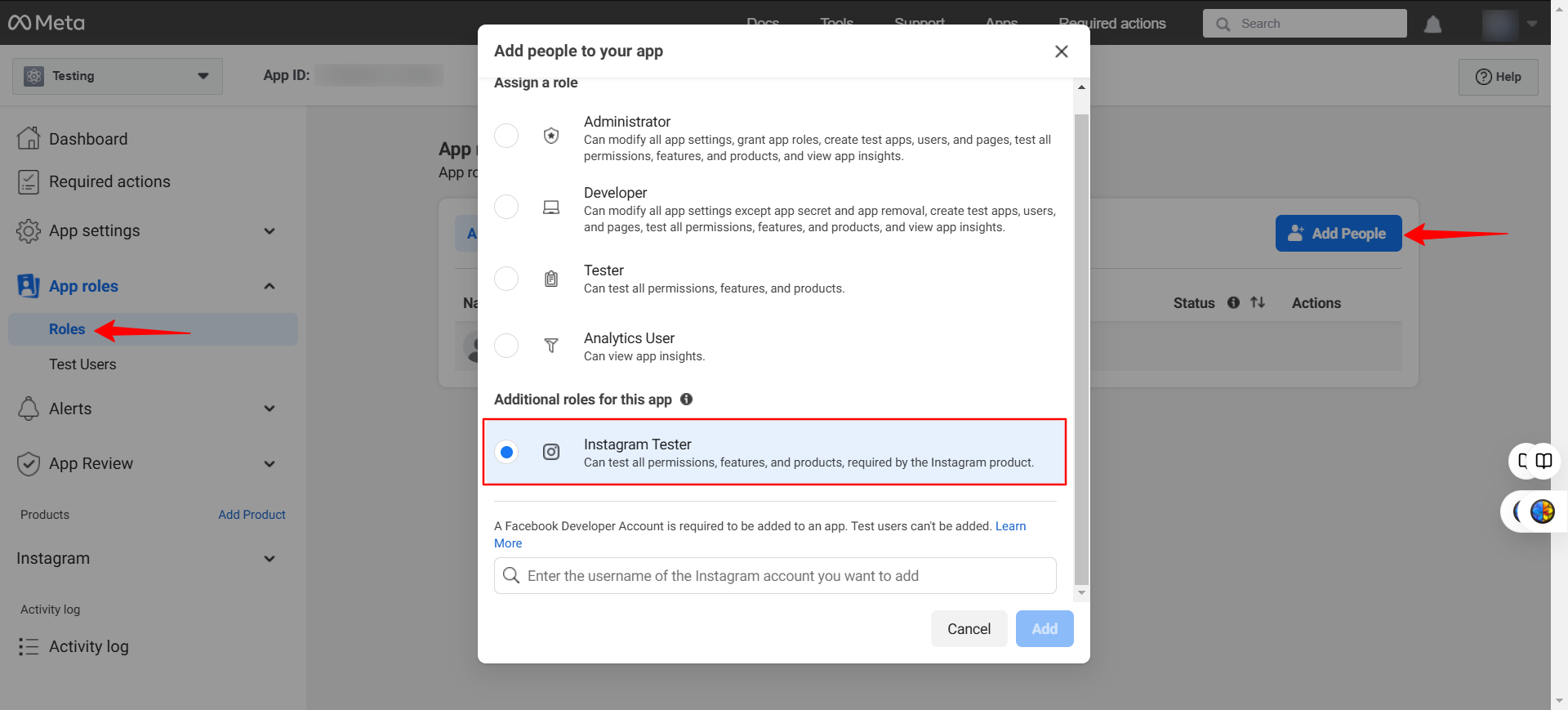
After you’ve added them, tell them to login to Instagram on their desktop, and go to Profile → Settings (the gear on the top-right) → Apps and Websites → Tester invites. They should see your app. For convenience, it would be best if they do it on your device, since they will require you to login during token generation.
Once they accept all permissions, you will be able to use their account through your Meta App in Spectra.
6. Once you’ve linked your account, In Instagram → API Setup with Instagram Login, go to Generate Access Tokens, find the account you want to link, and click on Generate Access Token.
If you are prompted to accept any other permissions, you may do so – these permissions will allow your app to generate your token for your media.
You should get a popup with the token, click “I understand” and then copy your token.

Paste it into the Spectra dashboard, and once it links your account you can close the popup with the access token in your Meta app.
For a better understanding, you can watch the below attached video.
We hope this guide has made the process easier for you. If you have any questions or run into any issues, feel free to leave a comment or reach out to us.
Your feedback helps us improve, and we’re here to ensure you have a smooth experience with Spectra Pro!